Caleta Private AI Appliance / Documentation
Caleta Private AI Appliance user guide
Setup is now one click: the DEPLOY NOW button below opens the Azure portal with our template loaded. Sign in from the portal's serial console (no SSH client needed, though SSH works too), the llm menu opens on its own, and you are serving an open-weight model privately in your own Azure subscription. This guide covers the menu, the chat UI and API, publishing over HTTPS, and locking the box down.
The appliance listens on loopback only. Nothing is reachable from the network until you deliberately expose it.
Sections 1 to 13 apply to both architectures, with x86 sizes and models in sections 12 and 13. Section 14 covers Azure Cobalt (ARM64).
The short version
Pick a size, click DEPLOY NOW, choose a subscription and a new resource group, then fill in the only two fields that need you: a password, and your public IP address (get it from ifconfig.me) so the box is locked to you and nobody else. Leave everything else exactly as it is; deployment takes about a minute and a half. Then open the VM's Serial console in the Azure portal (under Help), sign in as azureuser, and the appliance menu is waiting: download a model, serve it, done.
No fixed address (on mobile, or behind a corporate network you cannot pin down)? Enter none in the IP field. The appliance then deploys with no inbound access at all, not reachable from the internet, and you manage it entirely from the serial console. You can add access for your address later in the portal. Note the field cannot be left empty; the deployment will fail validation.
Want the chat UI in a browser? One menu action (publish securely) gets a Let's Encrypt certificate for the box's built-in DNS name. No domain to buy, and it stays reachable only from the IP you supplied.
Deploying to spot? Check your quota first: the size you pick needs its full vCPU count as low-priority quota. How to request it. And ignore the price the portal's size picker shows: that is the pay-as-you-go rate, while the template deploys spot and the VM bills at the much lower spot rate. Azure can reclaim spot capacity; a reclaimed box stays off until you start it again, and with auto-restore switched on in the menu it re-serves your model on boot. Ideal for evaluation; for always-on service use pay-as-you-go, or ask us about Managed Private AI.
On a CPU size? On E64ads_v7 and Azure Cobalt E32ps_v6, loading a model we measured there on ik_llama.cpp asks which engine to use: ik_llama.cpp, which we measured faster on those sizes, or standard llama.cpp. Either works; the guide explains the difference.
Want a different VM size? Every supported size has its own one-click template: pick one and see the cheapest region for it. Or deploy from the Azure Marketplace listing instead. The sections below cover every step and setting in detail.
Section 1
What the appliance is
The Caleta Private AI Appliance is one Azure Marketplace VM image that runs open-weight large language models privately in your own Azure subscription. No data leaves the VM during inference.
A single image serves four silicon families: NVIDIA (A100, H100 and Blackwell), AMD MI300X, x86 CPU and Azure Cobalt (Arm). It detects the hardware at boot and picks the right engine automatically. You are not choosing a build.
The engine is llama.cpp. On the CPU sizes where we measured a clear gain, a second engine, ik_llama.cpp, is offered alongside it (see two engines on selected CPU sizes). The chat interface is Open WebUI. There is nothing to install, it is all baked into the image.
Section 2
Requesting spot quota
Spot pricing is roughly a fifth of pay-as-you-go, and spot vCPU quota starts near zero on a new subscription, so request it before the day you need it. The full walkthrough, with screenshots of every portal step, lives on the known issues and sharp edges page.
Section 3
Deploy and first login
Deploy the offer from the Azure Marketplace into your own subscription. We recommend Trusted Launch (the image supports it) and one of the sizes in the supported sizes table. If you intend to run on spot, sort the quota out first: section 2.
Connect with an SSH key
ssh <admin-user>@<vm-public-ip>Connect with Microsoft Entra ID (recommended)
Entra brings MFA and conditional access with no SSH keys to manage. Add the "Login with Entra ID" extension at deploy time, assign the signed-in user the Virtual Machine Administrator Login role on the VM, then connect:
az ssh vm -g <resource-group> -n <vm-name>Deploying an RTX PRO 6000 or an A10? Two things, in this order
These are NVIDIA GRID cards and they are the exception to everything else in this guide. Get either step wrong and the box comes up on CPU with no obvious error.
- At deploy time, set the security type to Standard so Secure Boot and vTPM are off. The GRID driver is unsigned and will not load under Trusted Launch. This cannot be changed from inside the VM: a box already deployed with Trusted Launch has to be deallocated and updated before the next step can do anything.
- Once it is up, run
GPU status / enable (experimental)from thellmmenu. It fetches and licenses the driver, then switches the appliance to the right engine build. It is safe to re-run and reports status when there is nothing to do.
Skip the licence and the card runs at full speed for about twenty minutes, then NVIDIA clamps it several times slower with no warning. The enable step handles that for you, which is why it exists. Every other size we support needs neither step: the NVIDIA GRID page has the full story and the per-size memory.
The menu launches automatically
On interactive login the llm menu starts by itself. A short boot banner appears first (the Caleta cloud logo and a few hints). For a plain shell, choose quit in the menu, or connect with the environment variable CALETA_NO_MENU=1 set.
Section 4
The llm menu
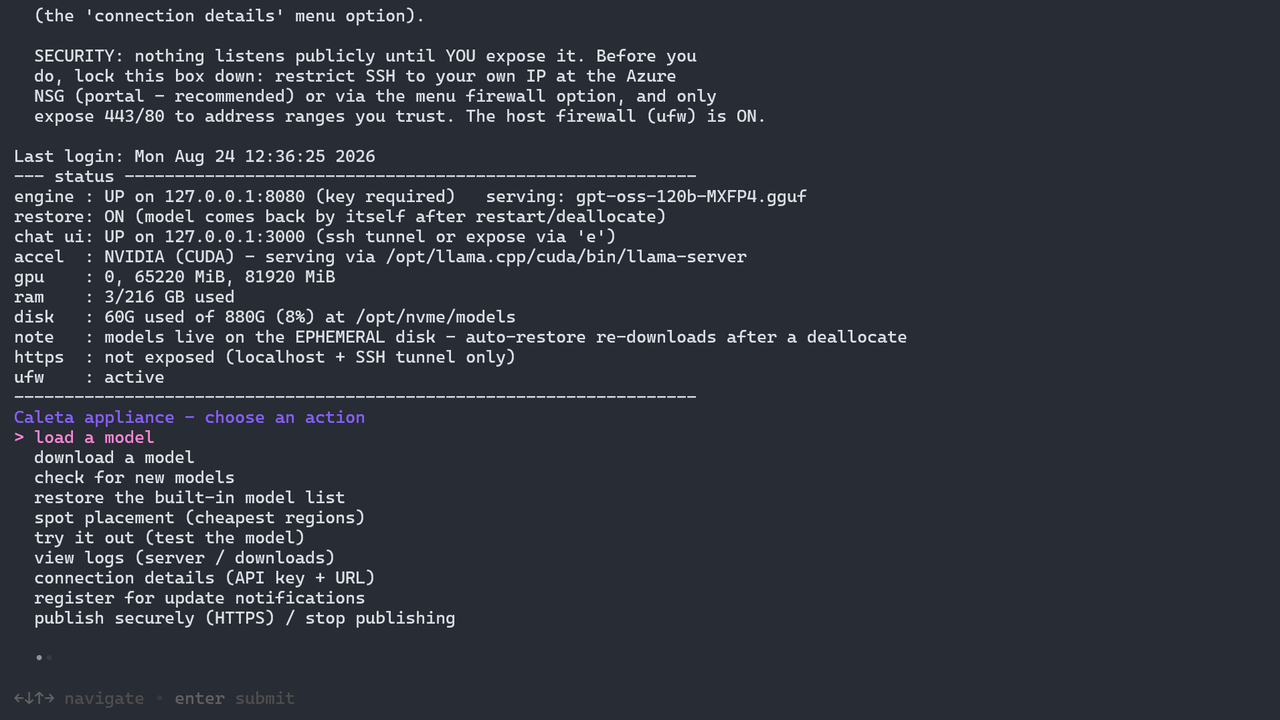
Every time it opens, the menu shows a live status block at the top, then the list of actions.
What the status block reports
- Engine state (UP, STARTING or DOWN) and the model being served
- Auto-restore (ON or off)
- Chat UI state
- GPU memory, or "none" on CPU sizes
- RAM
- Disk usage and mount point
- HTTPS exposure state
- Firewall (ufw) state
Actions
- load a model
- Start, or switch to, a model that is already downloaded.
- download a model
- Fetch a model from the catalogue, direct from Hugging Face.
- check for new models
- Fetches the current model list for this architecture from Caleta and replaces the menu’s list. Opt-in and manual only: nothing updates on its own, no models are downloaded, and the model being served is untouched. This is how a newly released model reaches an existing box without redeploying. Marketplace-deployed boxes only; on any failure the box keeps the list it already has.
- restore the built-in model list
- Puts back the exact model list the image shipped with. The undo for the option above.
- spot placement (cheapest regions)
- Advisory: cheapest low-eviction Azure regions for this VM size (Marketplace-deployed boxes only).
- try it out (test the model)
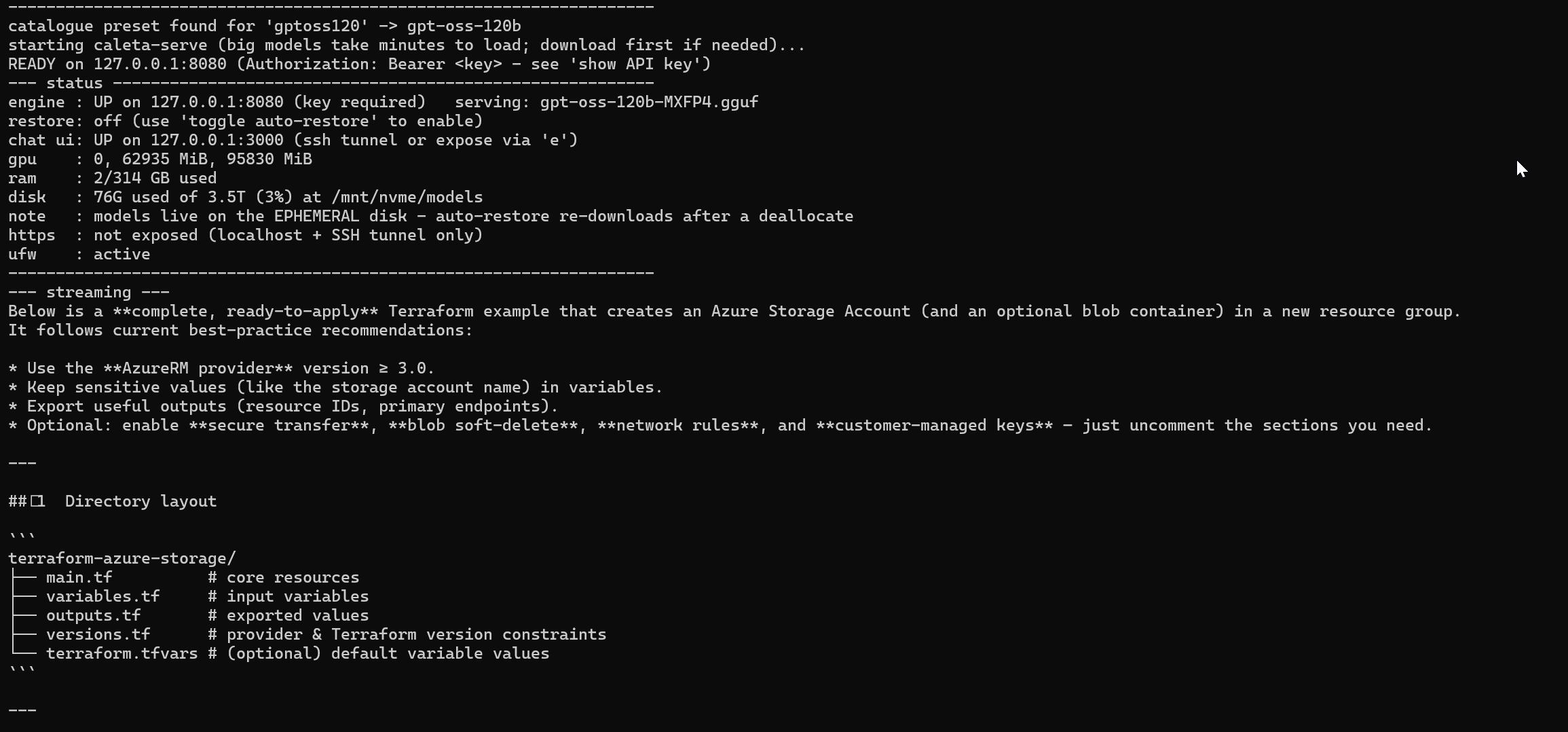
- Send a quick prompt and stream the answer in the terminal.
- view logs (server / downloads)
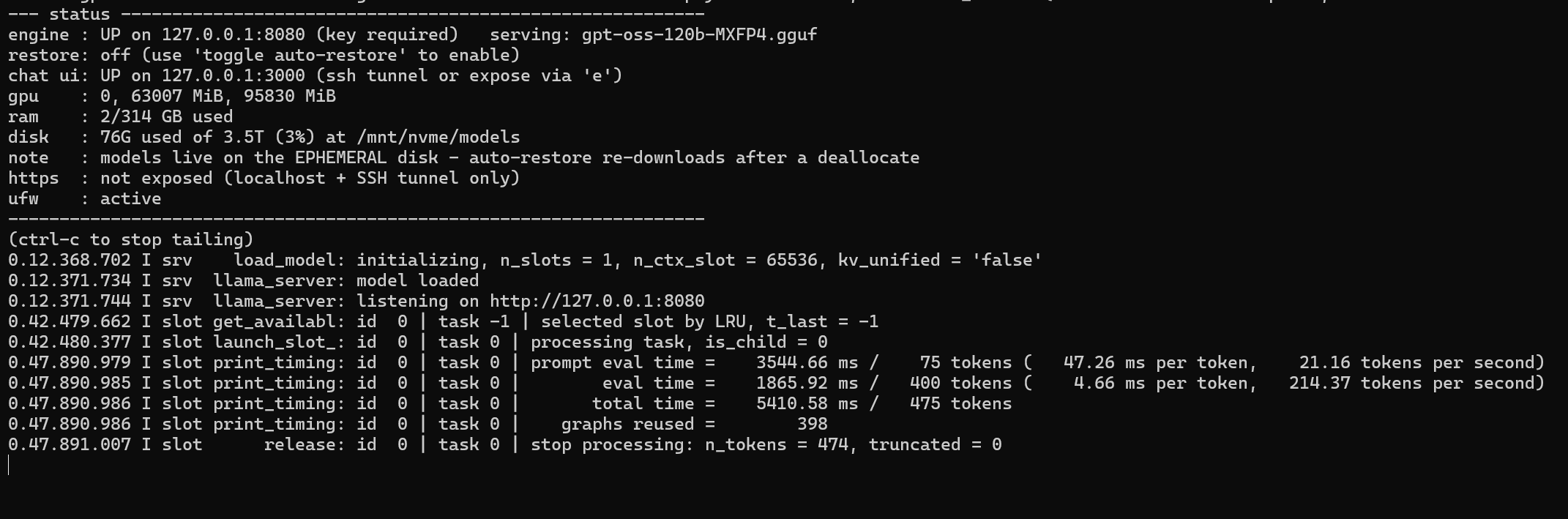
- Watch the model server log, or the download log, live.
- connection details (API key + URL)
- Print this boot’s inference API key, the URL and example commands.
- register for update notifications
- Optional email opt-in for image and security update notices.
- publish securely (HTTPS) / stop publishing
- Publish the chat UI and API over HTTPS, or stop.
- toggle auto-restore
- Make the box re-serve its last model automatically after a restart or deallocate.
- firewall (ufw)
- Manage the host firewall.
- stop the model (stops the service)
- Stop serving.
- AMD GPU (ROCm) statusAMD boxes only
- Reports the ROCm driver and GPU state.
- GPU status / enable (experimental)RTX PRO 6000 and A10 boxes only
- Installs and licenses the NVIDIA GRID driver, then switches the appliance to the right engine build. Safe to re-run, and reports status when there is nothing to do. This is the one-off step an RTX PRO 6000 or A10 box needs before it can serve on the GPU.
- eviction notices (Azure)
- Turns on a listener that tells you when Azure plans to evict, reboot or move this VM. It REPORTS only: it does not save your work, drain or restart anything, and on a spot box an eviction still stops the VM. Turn it on when you deploy rather than when you are worried, because the endpoint can take about two minutes to register on its first call and an eviction gives only about 30 seconds of notice.
- health endpoint (loopback)
- Shows the current health, and can serve the same JSON on 127.0.0.1:9101 for something on this box to poll. Loopback only: it is not reachable from outside unless you publish it yourself, and the appliance does not open it for you.
- export your data (chats, users, settings)
- Writes an archive of your Open WebUI chats, users and settings to a directory you choose. Open WebUI stops for a few seconds so its database copies cleanly, then starts again by itself.
- quit
- Leave the menu to a shell.
Section 5
Download a model, then serve it
These are two separate steps. download a model puts the weights on disk. load a model loads them into the engine. Downloading does not serve.
Downloading
Downloads pull direct from Hugging Face using the fast Xet transfer path. The progress bar shows size in GB and speed in Gbit/s, with peak transfer on completion. No model weights ship inside the image, and each model downloads under its own Hugging Face licence.
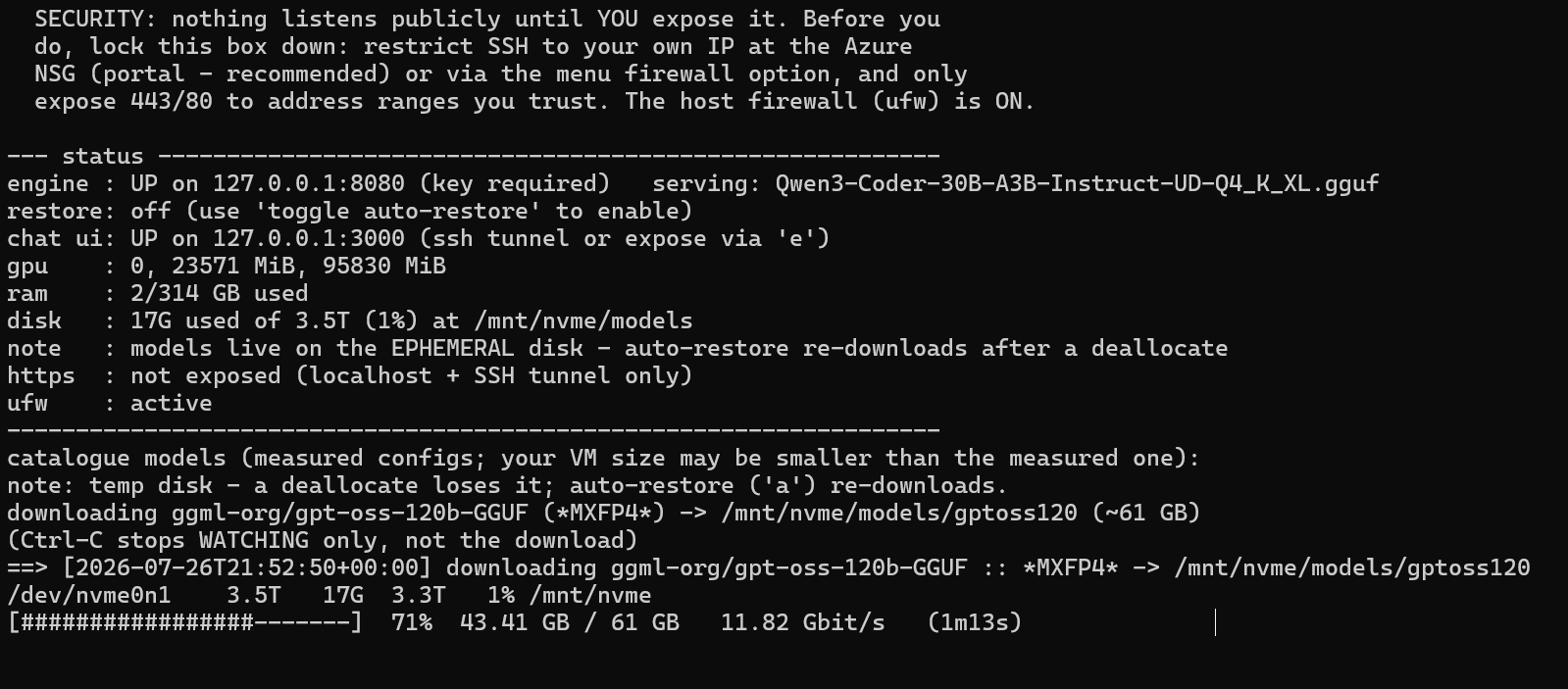
Weights are cached on the local temporary disk when the size has one: an NVMe disk mounted at /opt/nvme, or on sizes with a SCSI temporary disk (such as the A10 sizes), that disk at /mnt. On sizes with no local disk they fall back to the OS disk, so size the OS disk for the model you want. A temporary disk is wiped when the VM is deallocated; the model downloads again when you next serve it.
Serving
Standard llama.cpp rows serve on the engine's own defaults, plus GPU offload on GPU sizes. ik_llama.cpp rows serve with the settings we measured on that size. Either way the full flag string is shown before the model loads, and you can edit it at the prompt (press Enter to keep it).
Two engines on selected CPU sizes
From image 0.15.1 (x86) and 0.3.1 (Arm), some CPU sizes offer a second engine, ik_llama.cpp, next to standard llama.cpp. It is a fork tuned for CPU inference. Where it is on offer, load a model asks which engine to use; everywhere else the menu looks exactly as before.
- Where:
Standard_E64ads_v7(x86) and Azure CobaltStandard_E32ps_v6(Arm), for the models we measured on those sizes with it. Mistral-Small-4 has no ik_llama.cpp entry on either. An ik_llama.cpp entry is only offered on the exact size it was measured on, and only on a CPU that has the instruction set it was built for. - Why: on these sizes it is faster, and it is much faster at reading a long prompt. Qwen3-Coder-30B on
E64ads_v7, image 0.15.0, 14 Sep 2026: 72.8 tokens/sec decode and 833 prefill on ik_llama.cpp, against 48.2 and 364 on standard llama.cpp. Every figure is in the model catalogue. - Standard llama.cpp is always there too. Pick it at the same prompt. The two engines share the downloaded weights, so switching does not download anything.
- It refuses rather than guesses. If a box cannot run an ik_llama.cpp entry (a different size, or a host CPU without the instructions it needs), the server refuses to start and says why, instead of falling back to something slower.
If replies stop ending on an ik_llama.cpp model, reload the model. A client that sends ignore_eos (some benchmark tools and a "ban end of sequence" option in some UIs) leaves ik_llama.cpp unable to finish a reply for every user until the model is reloaded. The bundled chat UI never sends it, and standard llama.cpp is not affected.
For a team, add --parallel with the number of concurrent users. On the current engine the context window is shared between those slots rather than divided up front.
Fit guards
- On CPU sizes, an oversized model warns and asks before serving.
- On GPU sizes, the menu declines a model that does not fit in GPU memory. A spilled GPU model fails outright rather than just running slowly.
Use the supported sizes and model catalogue tables to choose.
Section 6
Chat UI and API
The chat UI and API bind to loopback only (127.0.0.1). Nothing is reachable from the network until you expose it (section 8).
Open an SSH tunnel from your laptop
With key auth:
ssh -L 3000:localhost:3000 -L 8080:localhost:8080 <admin-user>@<vm-public-ip>With Entra:
az ssh vm -g <resource-group> -n <vm-name> -- -L 3000:localhost:3000 -L 8080:localhost:8080Chat UI
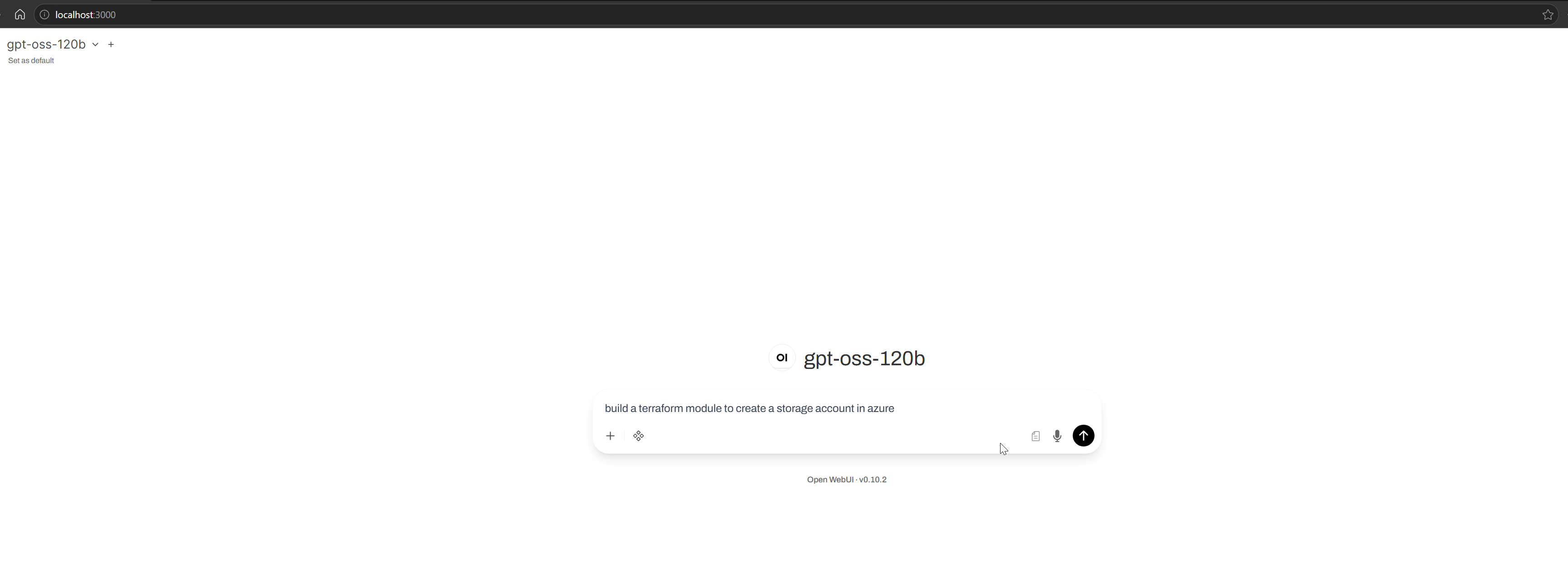
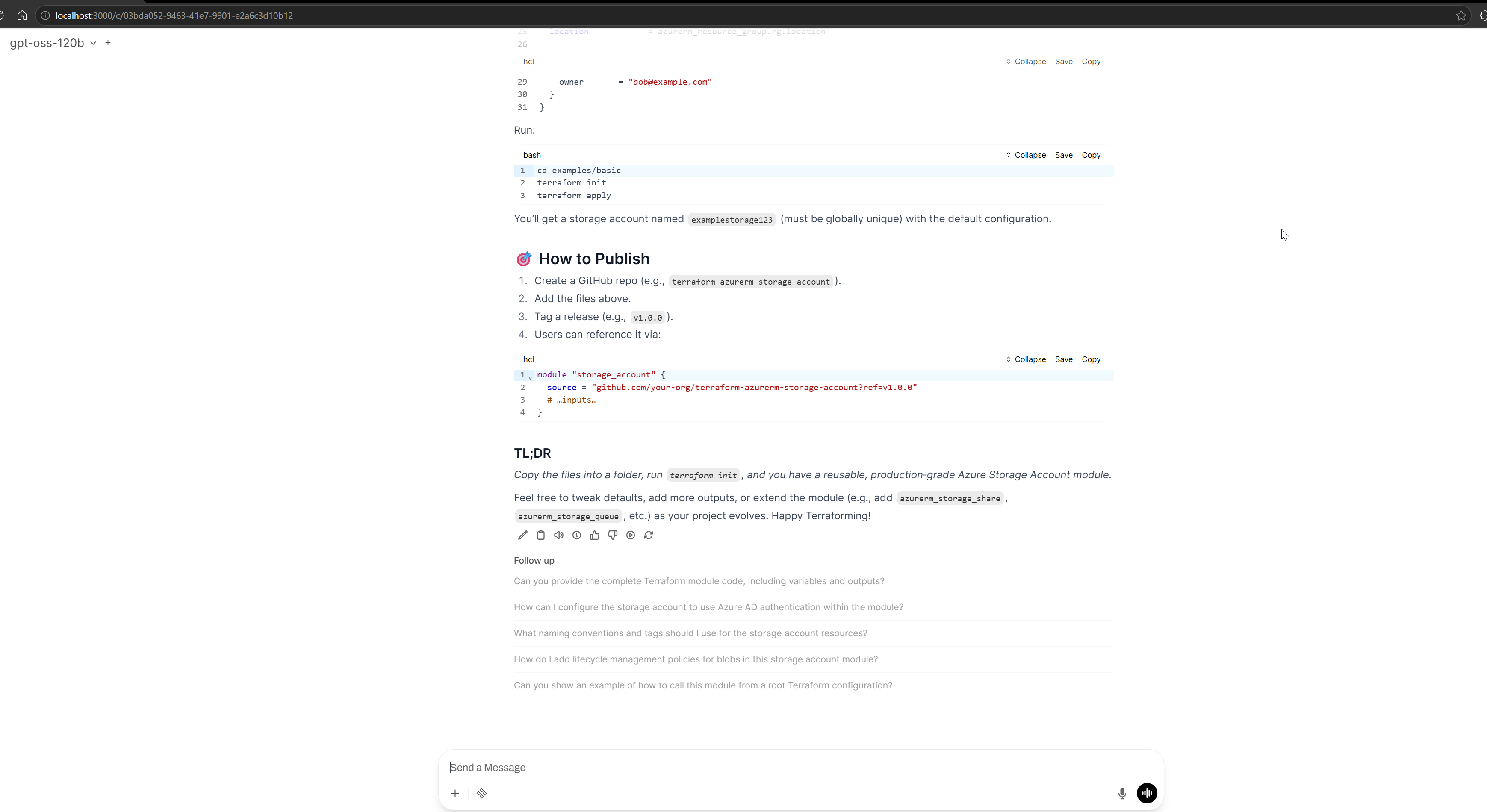
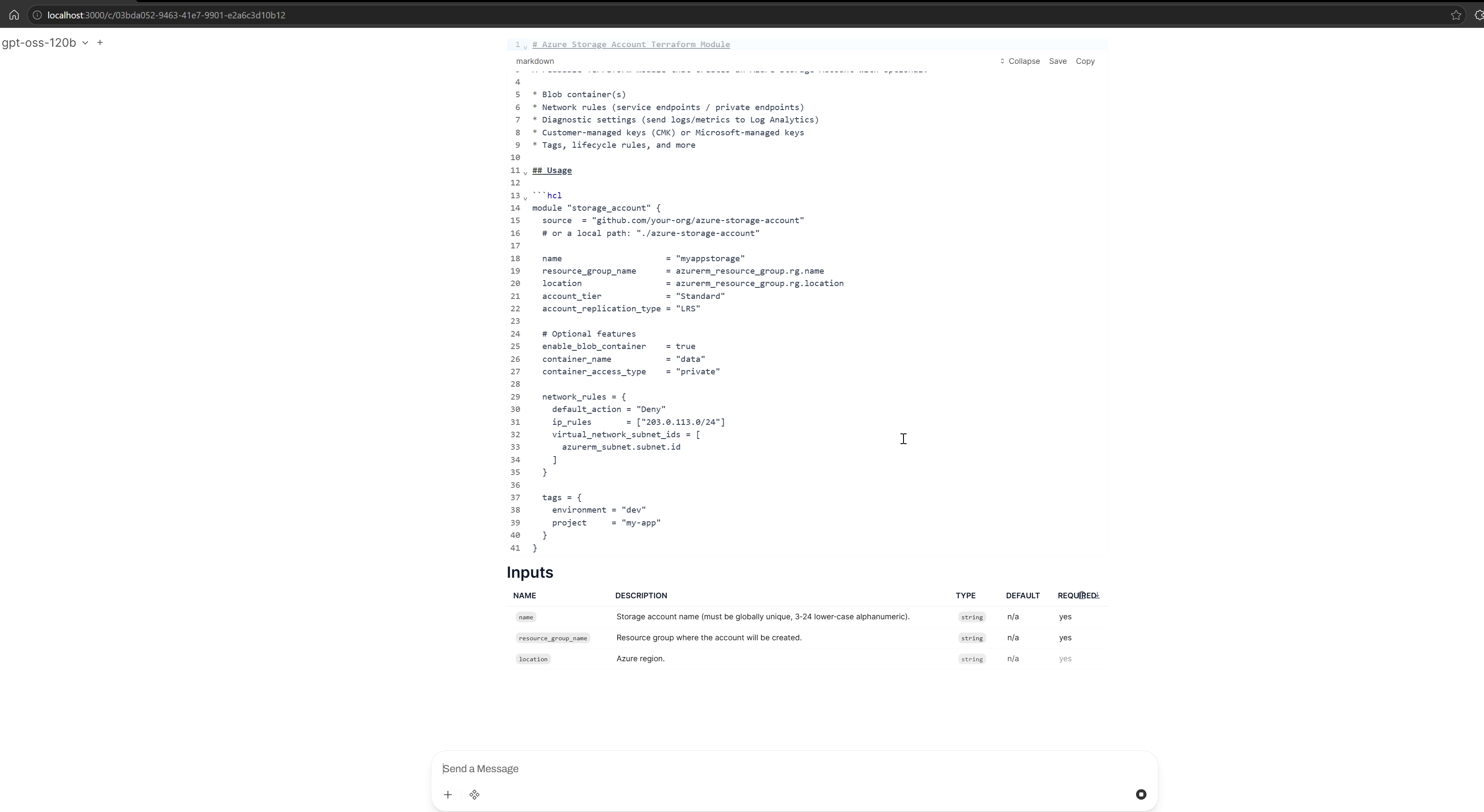
Open http://localhost:3000 for Open WebUI. The first account you create becomes the local admin. It is a local account on the VM, not a Caleta or Microsoft login.
API
The API is at http://localhost:8080 and is OpenAI-compatible (/v1/chat/completions, /v1/models). Every request needs the per-boot key as an Authorization: Bearer <key> header.
The per-boot API key
A fresh key is minted on every boot, stored root-only on the VM, never baked into the image and never reused across boots. Print it with the menu's connection details (API key + URL) option. The chat UI is wired to the current boot's key automatically.
Section 7
Serving an embedding model (expert path)
A RAG stack needs an embedding model alongside the chat model. The appliance can serve both from one box: one endpoint, one API key, the same URL layout your client already speaks to OpenAI.
This is the manual path. The menu is the easy path for chat models, and everything below is you driving the box directly. Nothing here is hidden from you and nothing is locked down.
Download an embedding model
Fetch an embedding GGUF with the built-in Hugging Face CLI. Two we have run on the shipping image:
- bge-m3 (Q8_0, from the gpustack repo), which returns 1024-dimension vectors.
- nomic-embed-text-v1.5, which returns 768-dimension vectors.
Note the dimension: your vector store has to be configured for the model you pick, and you cannot mix vectors from two models in one index. As everywhere else in this guide, models download from Hugging Face under their own licences.
Serve it as a second llama-server
Leave the chat model serving as it is and start a second llama-server instance for the embedding model, on its own port:
llama-server -m <path-to-embedding-gguf> --port <second-port> --embeddings -c 8192 -b 8192 -ub 8192The batch flags are not optional. Embeddings mode forces n_batch to equal n_ubatch, and the default of 512 cannot fit a long document, so without them long inputs fail. On GPU sizes, use the CUDA build with -ngl 0 for the embedding server.
Then route /v1/embeddings to that second port through the same publish path you use for the chat model (section 8), so your clients see a single endpoint with both models on it.
Using it from LangChain
Install the client packages:
pip install langchain-openai langchain-core numpynumpy is a hidden dependency of the in-memory vector store, so install it even though nothing imports it directly.
from langchain_openai import OpenAIEmbeddings
from langchain_core.vectorstores import InMemoryVectorStore

embeddings = OpenAIEmbeddings(
    base_url="https://<your-box>/v1",
    api_key="<this-boot's-api-key>",
    model="bge-m3",
    # Send each text whole. Without this, LangChain silently splits
    # long documents client-side before they reach the box.
    check_embedding_ctx_length=False,
)

store = InMemoryVectorStore(embeddings)
store.add_texts([
    "The appliance mints a fresh API key on every boot.",
    "Auto-restore re-serves the last model after a restart.",
    "The chat UI and API bind to loopback until you publish them.",
])

hits = store.similarity_search("what happens to the key when it reboots?", k=1)
print(hits[0].page_content)
That embeds the three sentences on the box, then retrieves the closest one. To answer rather than just retrieve, put the retrieved text into a prompt and send it to the chat model at the same base URL, with the same key.
Section 8
Publish over HTTPS with Let's Encrypt
The appliance uses Caddy to obtain and renew a real Let's Encrypt certificate automatically. This is the publish securely (HTTPS) menu option.
Do these two things first
These are the top support issue. Exposure will not work without them.
- Create a DNS A record for a domain you own, pointing at the VM's public IP.
- Open ports 80 and 443 inbound in the VM's Azure Network Security Group, in the portal. The menu only manages the host firewall. The NSG is cloud-side and separate.
Then expose
- Choose publish securely (HTTPS), enter the domain, and optionally restrict access to a source CIDR.
- Caddy obtains the certificate over ports 80 and 443. The menu verifies the domain actually resolves to this box and warns if not.
- Chat is then at
https://<your-domain>/and the API athttps://<your-domain>/v1/.... The API key is still required on/v1.
Watch issuance and look for "certificate obtained":
sudo journalctl -u caddy -fTo stop publishing, run the same menu option and enter off.
Section 9
Lock the box down
The host firewall (ufw) is on by default: deny inbound, SSH allowed.
Recommended first line: restrict SSH at the NSG
Restrict SSH to your own IP in the Azure Network Security Group, in the portal, not in the VM. A ufw SSH lock can shut you out if your IP changes, and the serial console is then the only way back.
The firewall (ufw) menu option
- Allow a CIDR to reach 443 and 80 (for expose)
- Remove a rule
- Restrict SSH to a CIDR, with a lockout warning and a typed confirmation
- Re-open SSH
Remember that the chat UI (port 3000) and the API (port 8080) are loopback-bound, so opening them in ufw does nothing on its own. Reach them by SSH tunnel, or by exposing on :443.
Security updates
Automatic updates are switched off, so nothing changes on your appliance without you choosing it. Each new image version ships fully patched. Once deployed, applying OS security updates is your responsibility, as with any virtual machine you run.
On an RTX PRO 6000 or A10 box, re-run the GPU enable step after any kernel update. The GRID driver is installed for the kernel that was running at the time, and the enable step reinstalls it for the new one. See NVIDIA GRID GPUs.
Section 10
Extras
Auto-restore
Toggle it on and, after a restart or deallocate, the box re-downloads the last model to the local disk and serves it again by itself. Useful for parking the box overnight. Note that the ephemeral NVMe at /mnt/nvme is wiped on deallocate, which is why auto-restore re-downloads.
Spot placement
On a Marketplace-deployed appliance this shows the cheapest Azure regions with acceptable eviction rates for the VM size. On a test or gallery VM, which is not a real Marketplace deployment, this feature shows nothing. That is by design.
Update notifications
Optional. Registering sends only the email address to Caleta, rate limited, with no other data. See the privacy policy for what is stored. Unsubscribe via support@caleta.io.
Offline and sovereign operation
Once a model is downloaded, the appliance serves fully offline. Block all outbound traffic and it keeps working after a reboot. The only outbound calls are model downloads from Hugging Face, Let's Encrypt when you expose, and the disclosed Caleta update and attestation channel. All three are set out in the privacy policy.
Section 11
Built-in tools
Baked into the image, nothing to install.
- llama.cpp
- The inference engine, CPU and GPU builds, pinned versions.
- ik_llama.cpp
- A second CPU engine, offered alongside llama.cpp only on the CPU sizes we measured it on. Pinned version.
- Open WebUI
- The private chat UI (unbranded), loopback only.
- Hugging Face CLI (hf)
- Fast model downloads (Xet transfer).
- Caddy
- Automatic HTTPS and Let’s Encrypt reverse proxy (off until you expose).
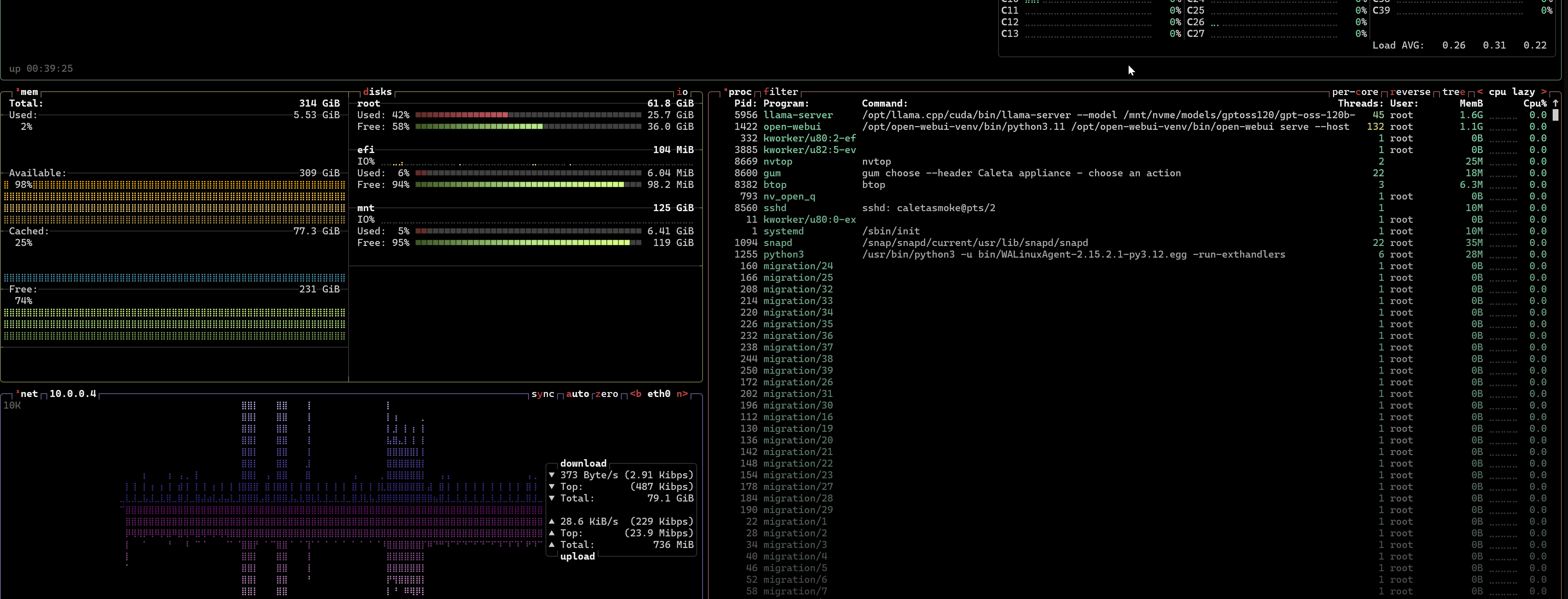
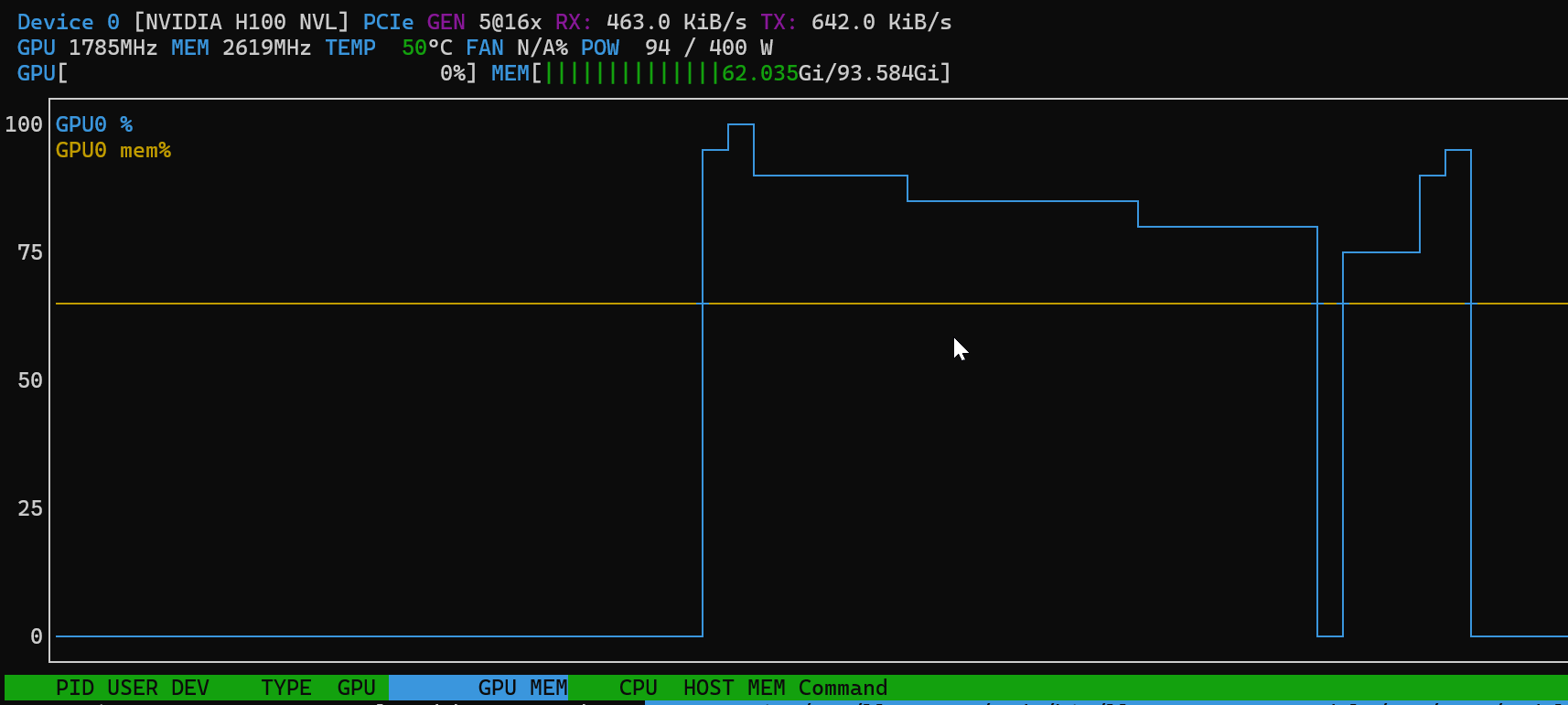
- btop and nvtop
- System and GPU monitors.
- ufw
- Host firewall.
- gum
- The interactive menu UI (the menu falls back to plain prompts if absent).
Section 12
Supported and recommended VM sizes
The full supported size list, with the flags explained and the dated benchmark table, lives on its own page now: supported VM sizes and regions. In short: Tesla T4, A100 and H100 NVL passthrough GPU sizes and the 8x MI300X box (limited Azure availability); the NVIDIA vGPU sizes, RTX PRO 6000 Blackwell and A10, which need Secure Boot and vTPM off at deploy time and a one-off enable step from the menu; and D and E series CPU sizes in beta. Where a speed is quoted we measured it ourselves; models we have not measured are marked, never guessed.
Local disk is a download-speed trade-off. NVMe (pds/ads) sizes: full-speed model downloads. Non-NVMe (ps) sizes: cheaper per hour, but the first download of a large model takes several times longer.
The image supports Trusted Launch (Secure Boot and vTPM), NVMe disk, accelerated networking and Microsoft Entra login.
For Azure Cobalt (ARM64) sizes, see section 14.
Section 13
Model catalogue
Every model the appliance ships, with its download size, its measured speed and the box and date that speed came from, is in the model catalogue. It covers x86 and Azure Cobalt (ARM64) together, so the same model can be compared across both. "Caleta Score" in that table is our in-house infrastructure-as-code benchmark, where higher is better. CPU figures are single-user speeds; GPU is the choice when you need throughput.
The appliance menu on the box is authoritative. Models and measured figures are updated regularly, and this page may lag behind the catalogue your appliance is running. Use check for new models in the menu for the current list, and see the model catalogue pages for per-model detail, including proven deployment pairings.
Reasoning models (DeepSeek-V4-Flash-0731, DeepSeek-R1-0528) think before they answer, and the thinking is charged against the token budget first. A small maximum-tokens value returns an empty answer rather than a short one, which can look like a broken deployment. Give them a generous budget.
Licences are permissive (Apache 2.0, MIT or equivalent) except Kimi, which is modified MIT: products over roughly 100 million monthly active users must display the model name. That is not a constraint for appliance use.
Section 14
ARM / Azure Cobalt
The appliance also ships as an ARM64 build for Azure Cobalt 100. It is a separate plan in the same Marketplace offer, and you choose x86 or Azure Cobalt at deploy.
What is the same
The llm menu, the download and serve flow, the chat UI, the SSH tunnel, expose with Let's Encrypt, the firewall, the per-boot API key and Entra login are all identical to x86. They are shared code. Trusted Launch (Secure Boot and vTPM), NVMe disk, accelerated networking and Entra login are supported on ARM exactly as on x86, verified on the shipping ARM image.
The menu looks the same on ARM. It simply reports gpu: none, because Cobalt is CPU-only.
What is different
- CPU-only. Cobalt is an ARM CPU platform, so there is no GPU tier on ARM. The engine is llama.cpp, and on
E32ps_v6the menu also offers ik_llama.cpp for the Arm-plan models we measured there with it, DeepSeek-V4-Flash included from image 0.3.2; Mistral-Small-4 is standard llama.cpp only (see two engines). All ARM figures are CPU inference. - Separate, curated model list. ARM has its own measured catalogue, because not every model is built and verified for ARM. It is a focused list of models proven on Cobalt.
CPU serving runs at single-user speeds on both architectures. It genuinely works, and the x86 GPU sizes are the choice when you need throughput for several concurrent users.
Supported ARM sizes
Two Azure Cobalt families: Dpsv6, the general-purpose tier at 4 GiB of memory per vCPU, and Epsv6, the memory-optimised tier at 8 GiB per vCPU. Both run the same Cobalt 100 silicon with a full physical core per vCPU. The table lists the sizes we have measured a model on, with E32ps_v6 the reference size; smaller sizes also run the smaller models, and every supported size is listed with its price on the VM sizes page.
| Size | vCPU | RAM | Notes |
|---|---|---|---|
| Standard_E32ps_v6 | 32 | 256 GiB | About USD 0.37/hour all-in on spot (about 0.31 VM plus 0.06 appliance fee). The Arm reference size: the Arm-plan model figures were measured here, on image 0.3.1 with ik_llama.cpp (14 Sep 2026), e.g. Qwen3-Coder-30B 74.3 tokens/sec decode, 337 prefill. |
| Standard_D64ps_v6 | 64 | 256 GiB | Same memory as E32ps_v6 with twice the cores. Measured with mainline llama.cpp only; no figure on the current image yet. |
| Standard_E64ps_v6 | 64 | 512 GiB | About USD 0.75/hour all-in on spot (about 0.63 VM plus 0.12 appliance fee). For the largest models, including GLM-5.2 (744B). |
D-series uses the same Cobalt silicon with less memory per core. Decode speed is expected to match E-series at the same core count, but we have not measured it yet. Every measured figure on this page was taken on Standard_E32ps_v6.
ARM model catalogue
Measured on Azure Cobalt on CPU. The figures taken on Standard_E32ps_v6 are ik_llama.cpp on image 0.3.0, 14 Sep 2026, except Mistral-Small-4, which is standard llama.cpp on image 0.3.3, 3 Oct 2026; the older figures on other Cobalt sizes are standard llama.cpp and name their size. Single-user speeds.
The measured Cobalt figures for every model on the Arm list, each with the size it was taken on and its date, are in the model catalogue, alongside the x86 numbers for the same models.
Licences are Apache 2.0, MIT or equivalent permissive, the same as x86. Models download from Hugging Face under each model's own licence.
Related pages
- Caleta Private AI Appliance overview
- Privacy policy, covering what stays in your subscription and every outbound connection
- Terms of service, covering billing, model licensing, warranties and support
- Security, covering the security posture and vulnerability disclosure