Caleta Private AI Appliance / Known issues
Known issues and sharp edges
Everything worth knowing before you hit it, with the workaround. Most of these are behaviours of the models, the GPUs or Azure rather than faults in the appliance, and we would rather you read them here than discover them at midnight.
A100 sizes: check MIG mode first
If an A100 box seems healthy but serves at CPU speeds, check MIG mode before anything else: run nvidia-smi --query-gpu=mig.mode.current --format=csv. MIG enabled means the engine silently falls back to CPU with every health signal green. This is an Ampere-only behaviour; disable MIG and reboot. The appliance cannot see this for you in every case, so it is first on this list.
Reasoning models with a small max_tokens return an empty answer
A reasoning model spends tokens thinking before it answers. If your API call sets a small max_tokens, the whole budget can go on reasoning and the answer body arrives empty with finish_reason length. That is the cap working, not a fault. Raise max_tokens or leave it unset; reasoning arrives separately in reasoning_content.
The first GPU sample after boot is slow
GPU clocks ramp. The first generation after boot can read at roughly half speed; the second is representative. If you are timing anything, discard the first sample.
Let’s Encrypt needs port 80 open to the world, and not just once
Certificate issuance and every ~60-day renewal validate from the public internet over port 80. An IP-restricted port 80 fails silently, and a certificate that issued fine breaks two months later. When exposing the chat UI, leave the CIDR restriction blank until the certificate has issued, and leave port 80 open for renewals. Port 443 can stay restricted throughout.
T4 and A10 sizes on images before 0.15.1: models live on the OS disk
Before image 0.15.1 the appliance did not use the SCSI temporary disk at /mnt that these sizes have, so models downloaded to the OS disk, which has roughly 30 GB free at the default size. From 0.15.1 models go to that temporary disk when it is larger than the free space on the OS disk (verified on an A10 size). A temporary disk is wiped on deallocate, so the model downloads again when you next serve it.
ik_llama.cpp: replies stop ending after a client sends ignore_eos
If a model served on ik_llama.cpp starts writing past the end of its answer for everyone, reload the model. One request carrying ignore_eos (some benchmark tools send it) leaves ik_llama.cpp unable to end replies until it is reloaded. The bundled chat UI does not send it, and standard llama.cpp is not affected.
AMD MI300X: no Q8_K_XL quants
A HIP bug upstream in the engine produces garbage output with Q8_K_XL quantisations on AMD. It reproduces on the current engine. The catalogue simply does not offer that combination; if you serve your own models on AMD, avoid Q8_K_XL.
RTX PRO 6000 (Blackwell): partial cards report partial memory
The quarter and half card sizes are hardware slices, and the appliance sees the slice: 24 GB visible on a quarter of a 98 GB card. Expected, not a fault. A quarter card is also slower than a full A10 with the same visible memory. These families need a one-off enable step and Secure Boot off; the full story is on the NVIDIA GRID page.
Kimi K3 and the frontier giants
The 1.3 to 1.5 TB models are new on the menu and unmeasured by us: Azure capacity for the 8x MI300X size they need is scarce enough that we ship them before we can test them, and say so rather than guess. They are expected to serve in the low tens of tokens per second, one active GPU at a time, which is how the engine splits models of this shape everywhere, not a defect. If one misbehaves, tell us; the catalogue can be corrected without a new image.
Requesting spot quota: the walkthrough
Not an issue, but the portal step people most often hit first, so it lives here with every screenshot. Moved from the setup guide to keep that page readable.
Azure spot pricing is roughly a fifth of pay-as-you-go, and it is how an extended evaluation costs very little. Spot vCPU quota is tracked separately from your normal vCPU quota, and on a new subscription it is often close to zero. It is worth sorting out before you deploy rather than during.
You will know you need it when the size picker groups sizes under "Insufficient quota - spot limit", with a Request quota link beside each one.
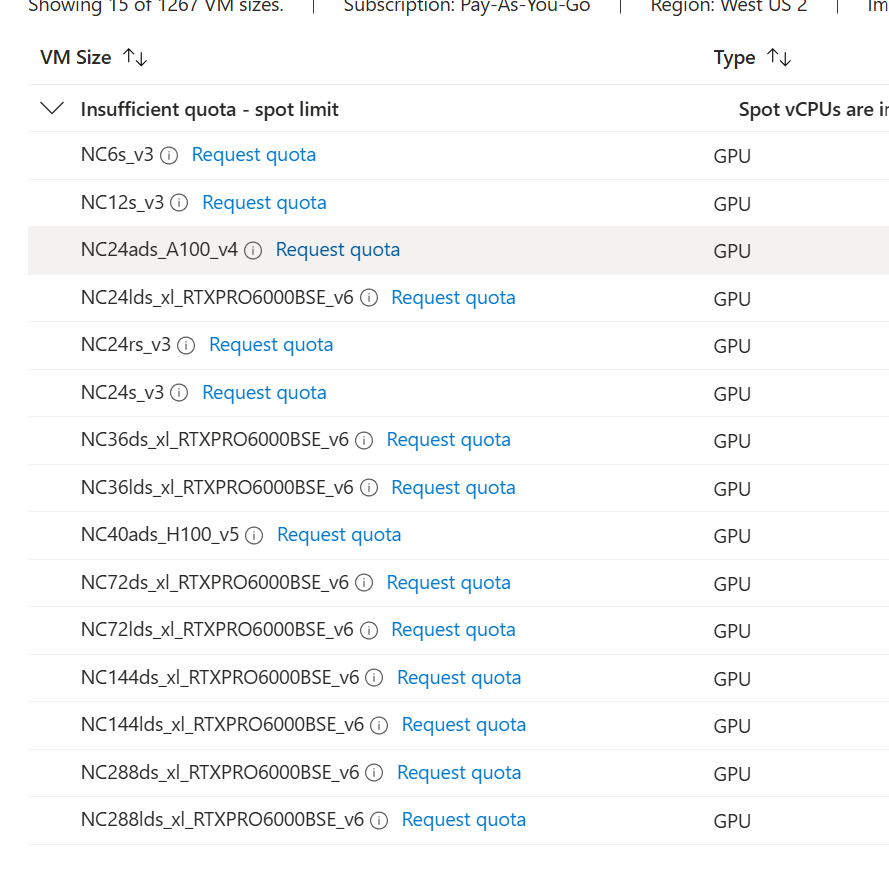
1. Try the instant route, and expect it to fail
Click Request quota. Azure offers to raise Total Regional Low-priority vCPUs. Submit it. On most subscriptions it comes back Unsuccessful, which is normal: Microsoft gate spot increases behind a support request. Click Create a support request.
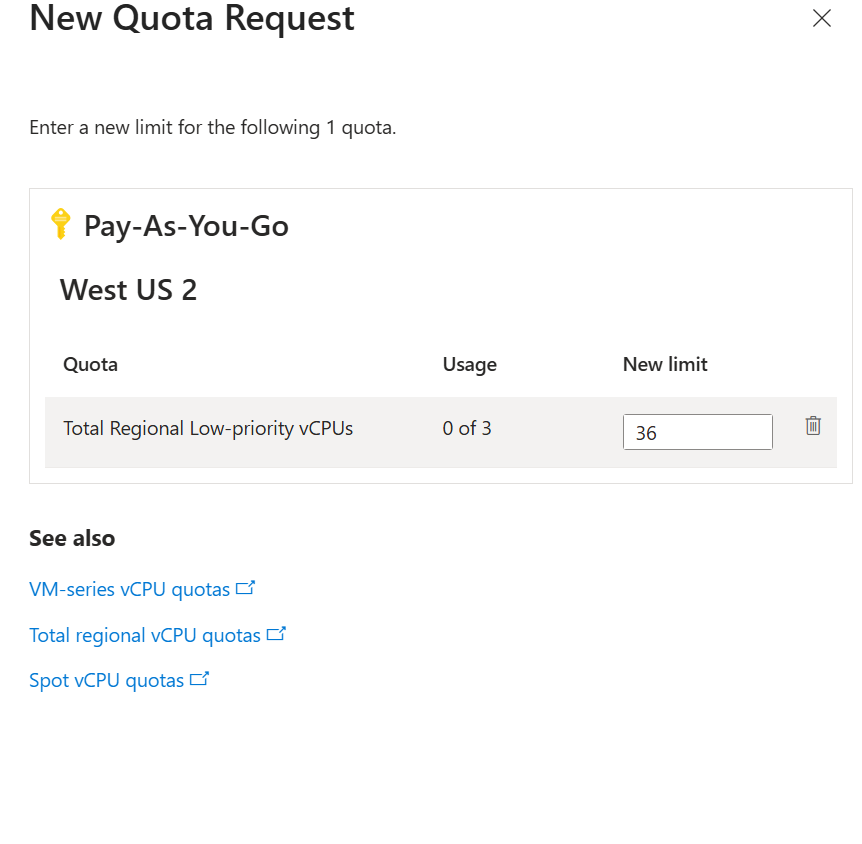
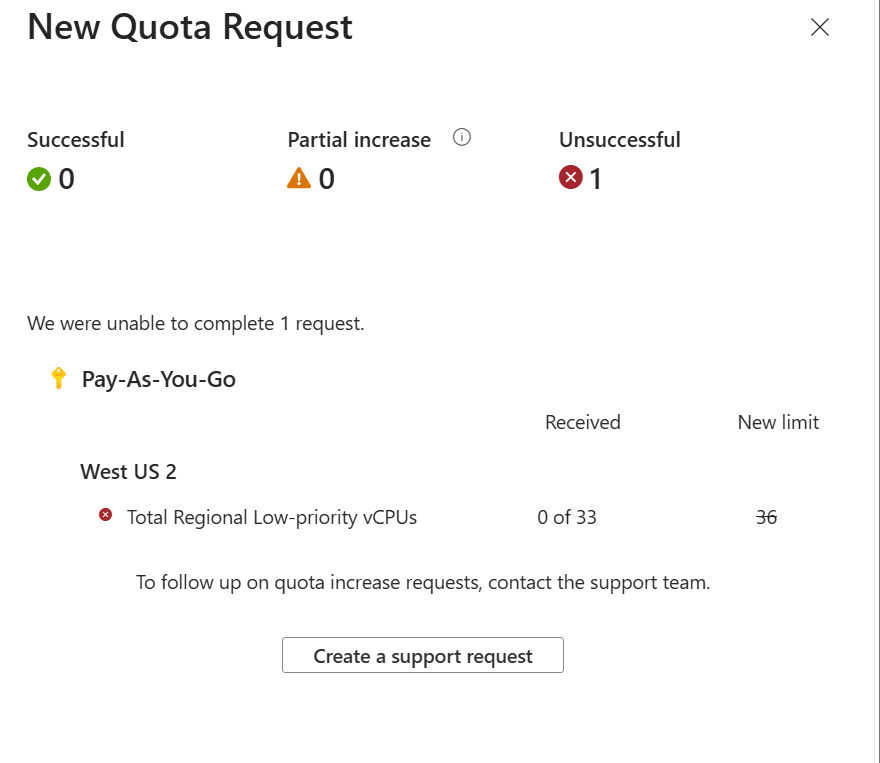
2. Problem description
Issue type: Service and subscription limits (quotas). Choose your subscription. Quota type: Compute-VM (cores-vCPUs) subscription limit increases. Click Next.
Do not click Manage quota. You will see a panel offering a Manage quota button with the words "you don't need a support ticket". That is the same instant path that has just failed.
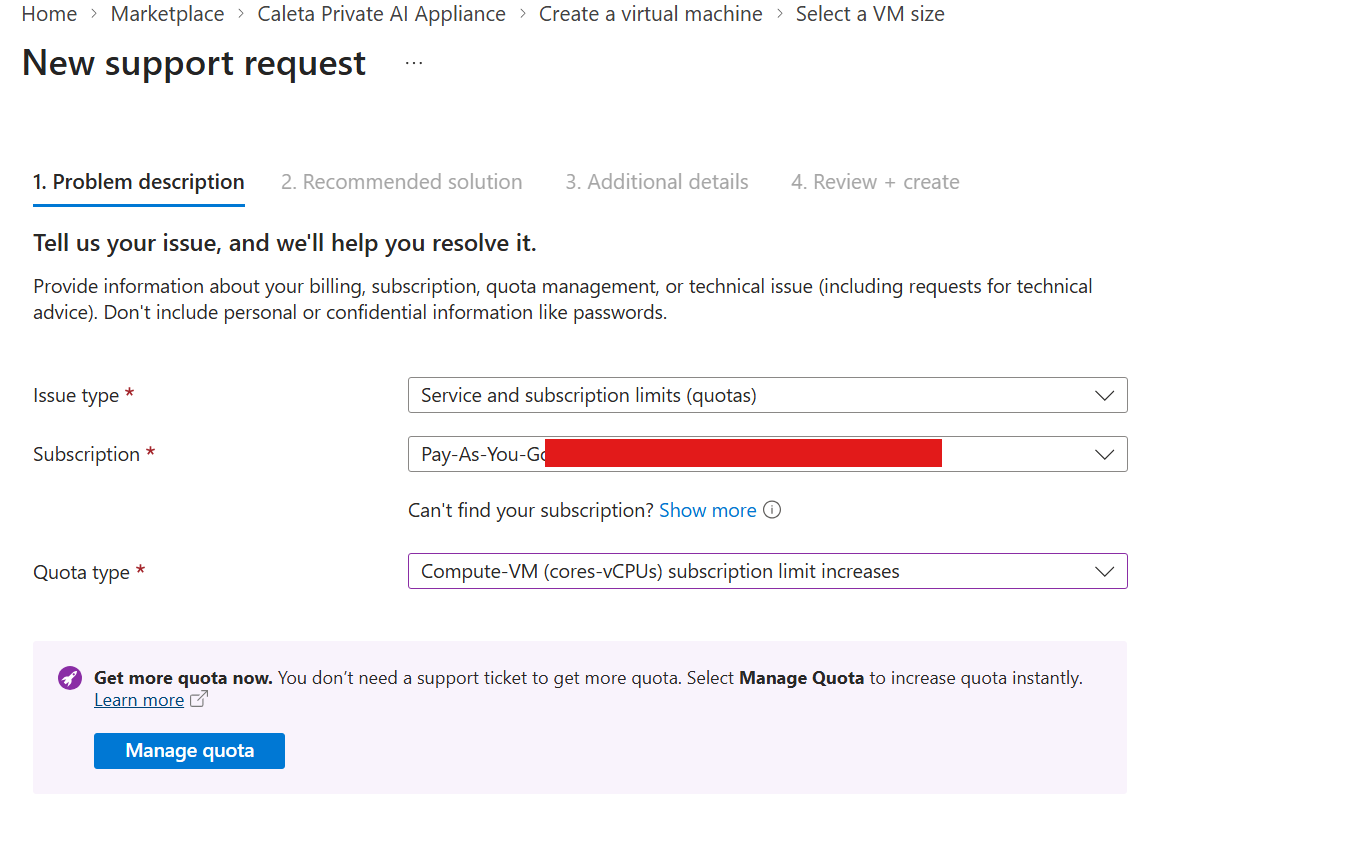
3. Additional details
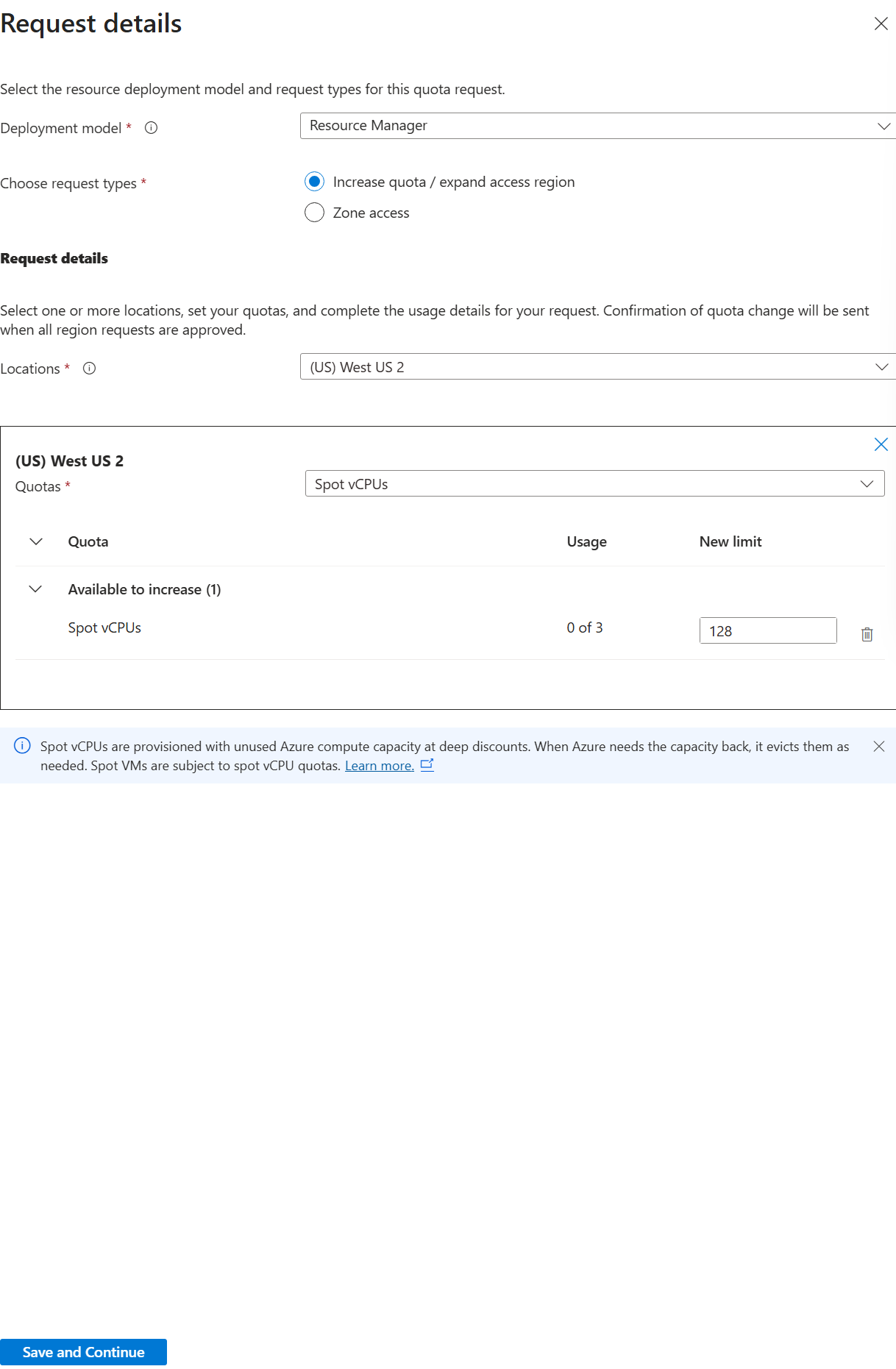
Click Enter details. Set the deployment model to Resource Manager and the request type to Increase quota / expand access region. Choose your region, and add more than one if you want them all covered by a single request.
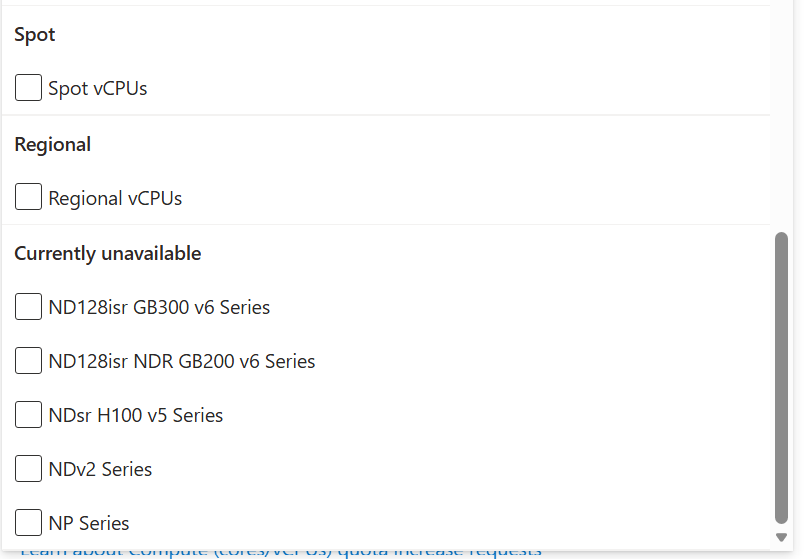
Open the Quotas dropdown and tick Spot vCPUs, under the Spot heading. Do not confuse it with Regional vCPUs immediately below. Set the new limit; 128 is a reasonable request and is usually accepted. Save and continue.
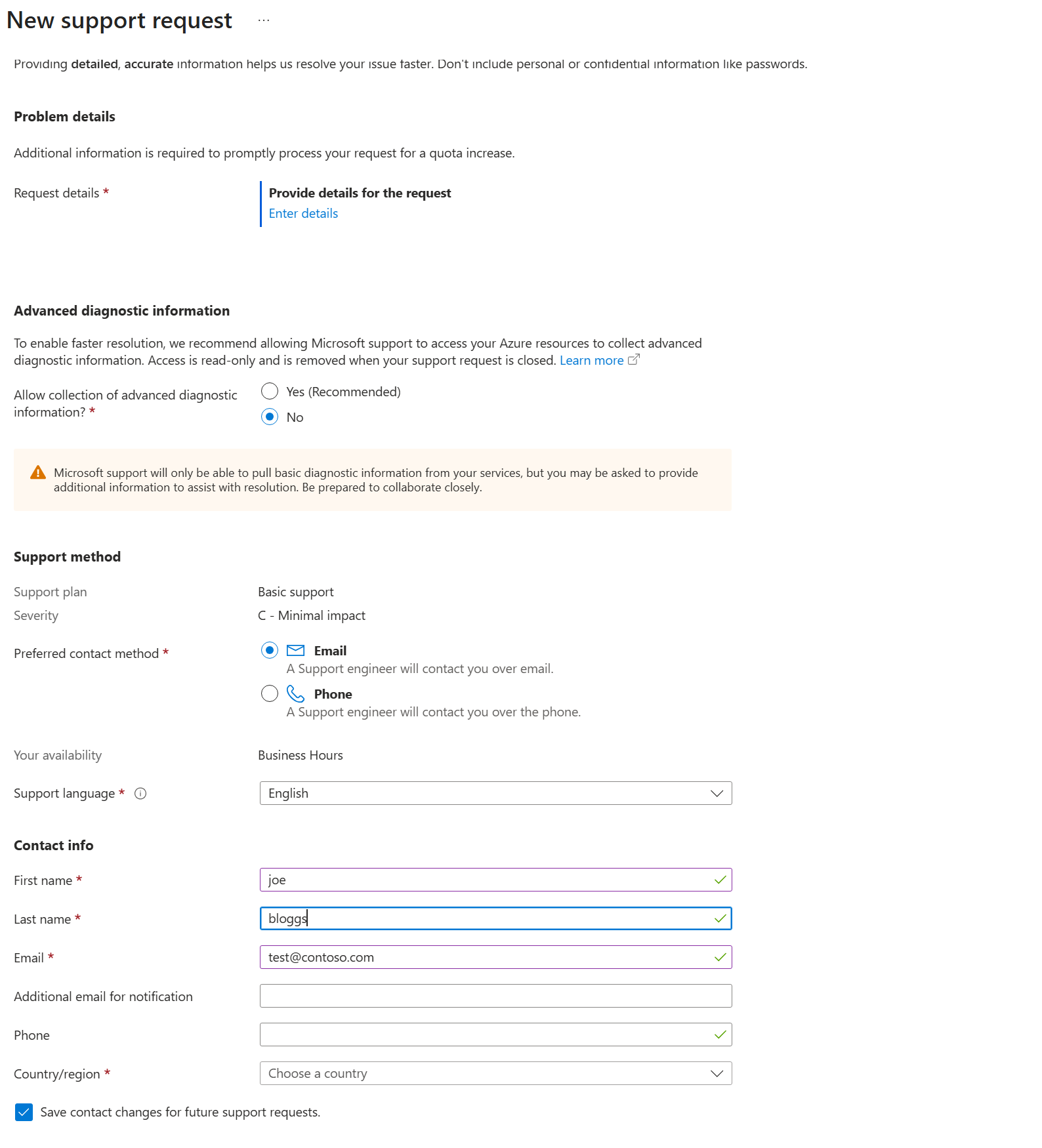
Back on the details page, set advanced diagnostic information to No, choose Email as the contact method, and fill in your details.
4. Review and create
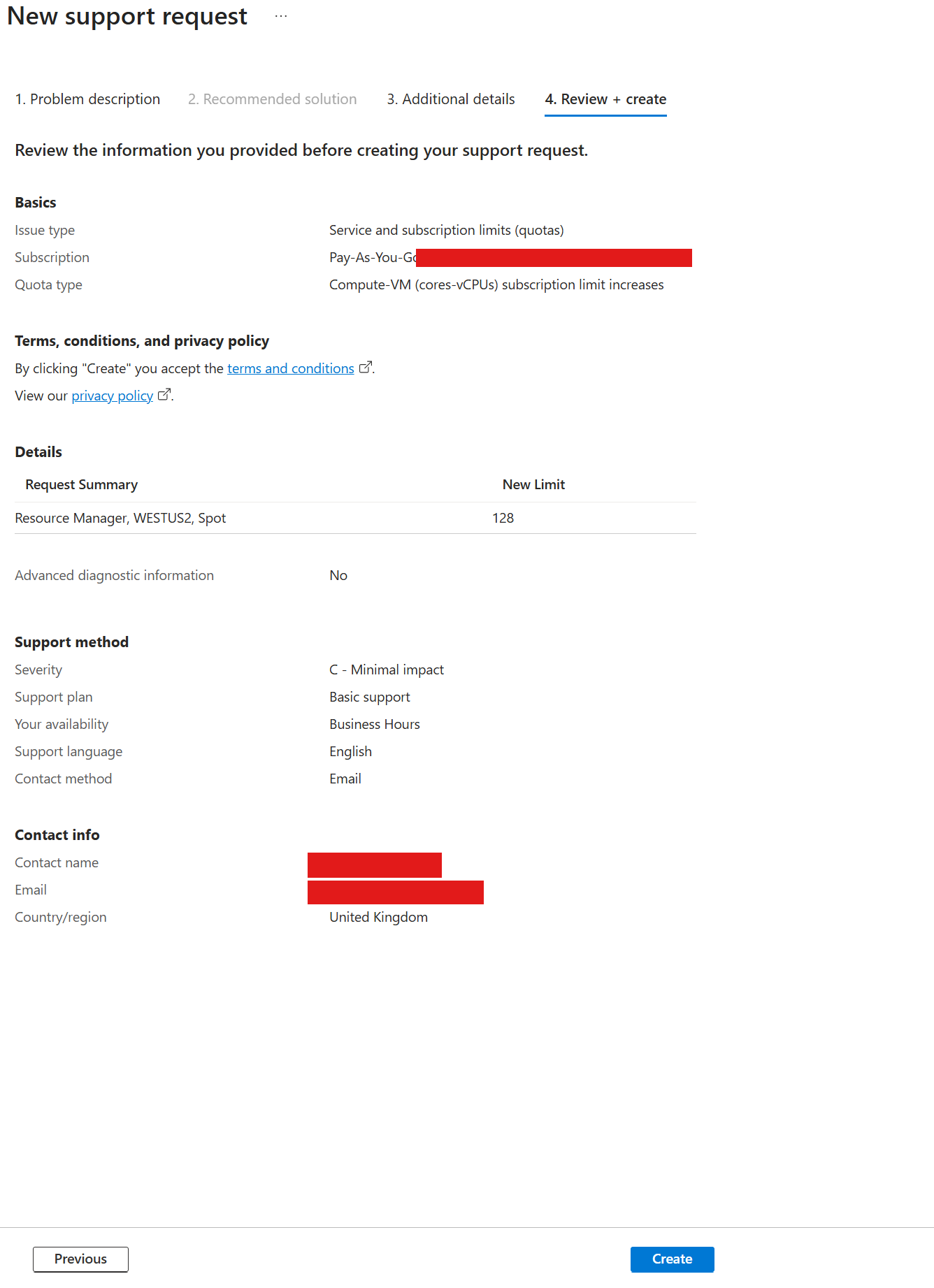
Check the summary reads as your region and Spot with the limit you asked for, then click Create.
Microsoft normally respond within about 20 minutes and the request is usually approved automatically.
If your spot request is refused
Some subscriptions are refused outright with the reason code SpotVMNotAllowedForPayGCustomer. We tested this across two regions and two request sizes and got the same refusal each time, so it is neither regional capacity nor the size of the request.
Two things appear to matter. The first is subscription type: Microsoft lists Enterprise Agreement, Pay-As-You-Go, Sponsored and CSP subscriptions as able to use spot, while free trial, Azure for Students, Dev/Test, Visual Studio subscriber and partner-benefit subscriptions cannot use it at all. The second is billing history: in our own testing, a near-dormant subscription with about a dollar of lifetime spend was refused, while an active subscription under the same owner and the same agreement type was approved without difficulty. Microsoft does not publish a threshold, so we cannot tell you how much history is enough, only that it appears to count.
In practice, an organisation with an existing Azure footprint, an Enterprise Agreement or a partner-managed subscription is unlikely to encounter this. A brand-new subscription created with a credit card may well.
Check before you deploy:
az vm list-usage --location <region> \
  --query "[?contains(localName,'Low-priority')].{Name:localName, Used:currentValue, Limit:limit}" -o table
A limit of 3 means you are gated and will need an increase.
The appliance does not require spot. Spot is a cost optimisation, not a prerequisite. If you cannot get spot quota, deploy on pay-as-you-go: the CPU and Arm entry sizes cost roughly a pound to a pound fifty an hour at full price. For GPU work, Standard_NC48ads_A100_v4 is the value pick over the larger H100 size: roughly half the cost, and the A100 family is our reference hardware.
GPU quota uses the same process, choosing the relevant GPU family instead of Spot vCPUs. It is almost always zero to begin with, so request it ahead of the day you need it.
Found something not on this list? Tell us and it will either get fixed or get written down here.