How to Export Your Azure Cost Data
Follow this visual guide to download your cost data. We'll sanitize it in your browser before upload.
Quick Steps
- 1Go to Cost Management + Billing in the Azure portal
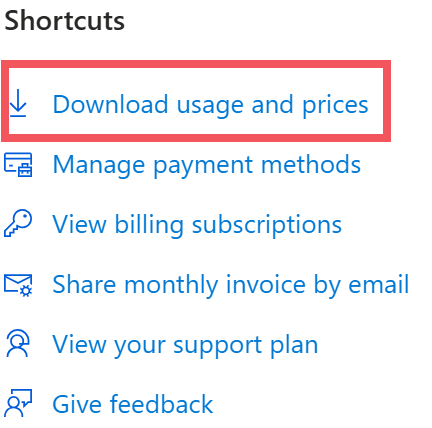
- 2Find the Shortcuts box and click Download usage and prices
- 3Download the last 3 months and upload to our assessment form
Can't find it? Follow this visual guide
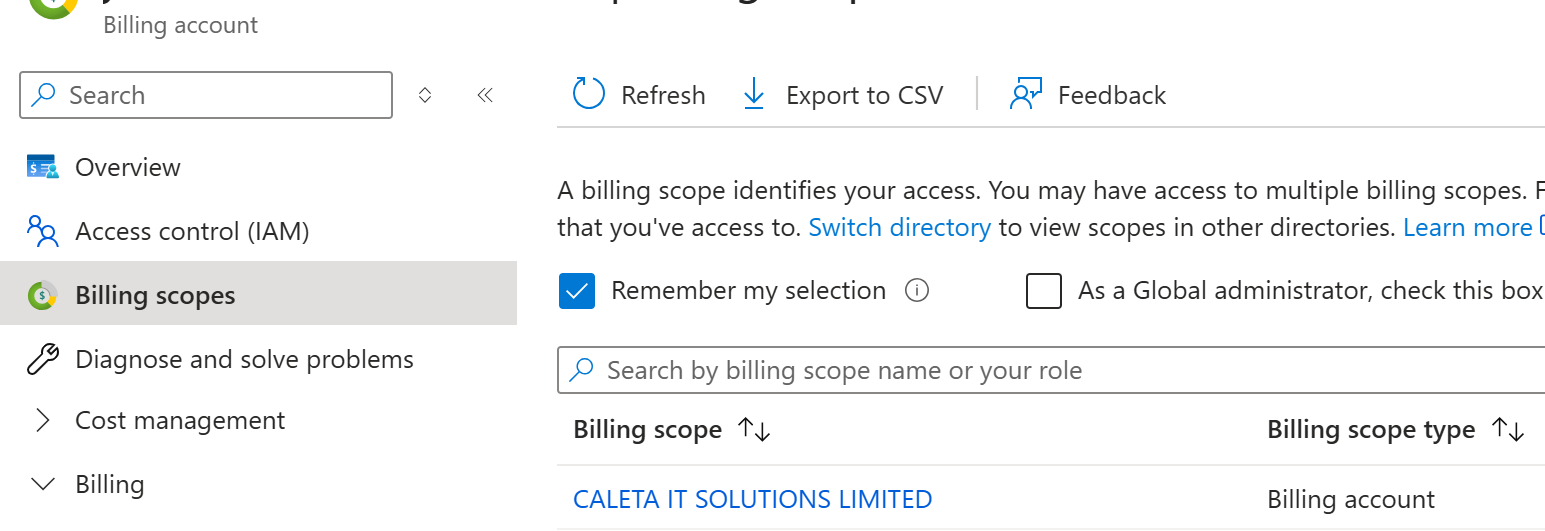
1Make sure you're on a Billing Account
Click Billing scopes in the left menu. You should see your billing account listed.
Don't have access? Get the right permissions
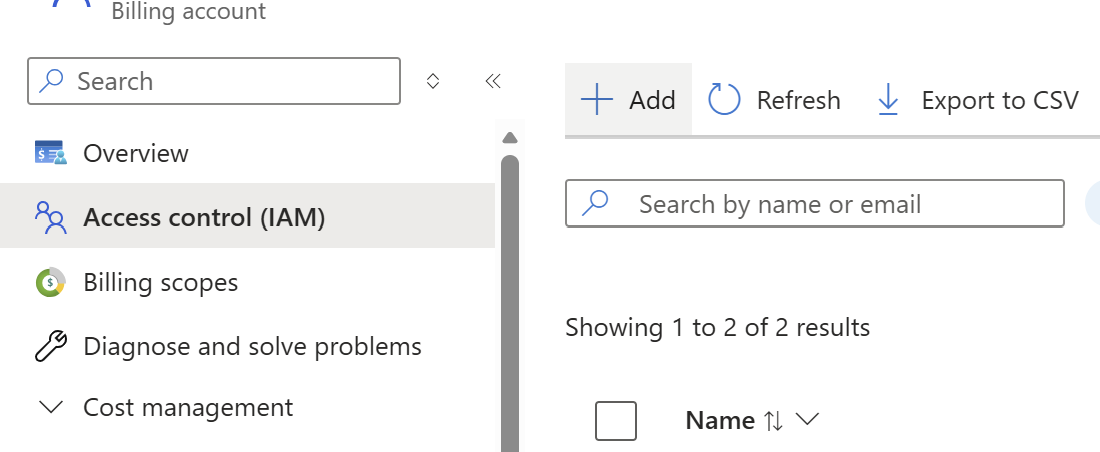
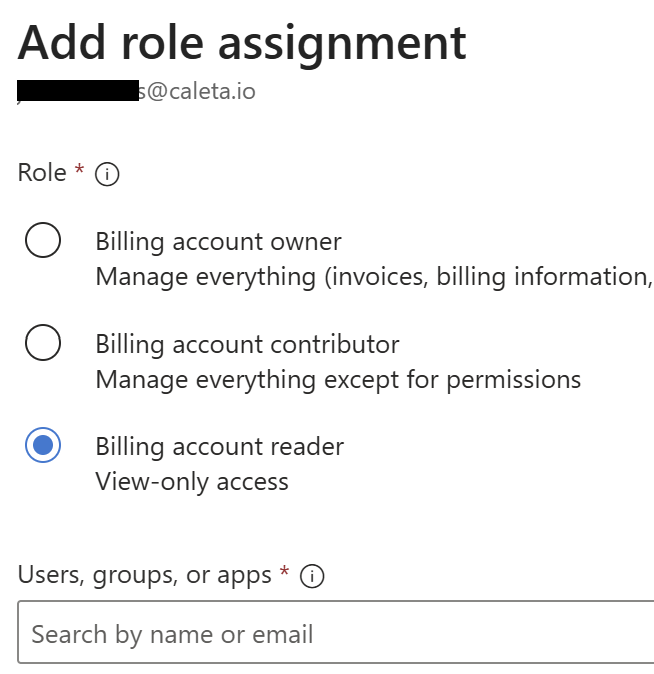
Ask your billing admin to grant you Billing account reader access. They need to go to Access control (IAM) and click + Add:
1. Click Access control (IAM), then + Add
2. Select "Billing account reader" role
2Go to Overview and find the Shortcuts box
Click Overview in the left menu. Scroll down to find the Shortcuts box (usually bottom-right). Click Download usage and prices.
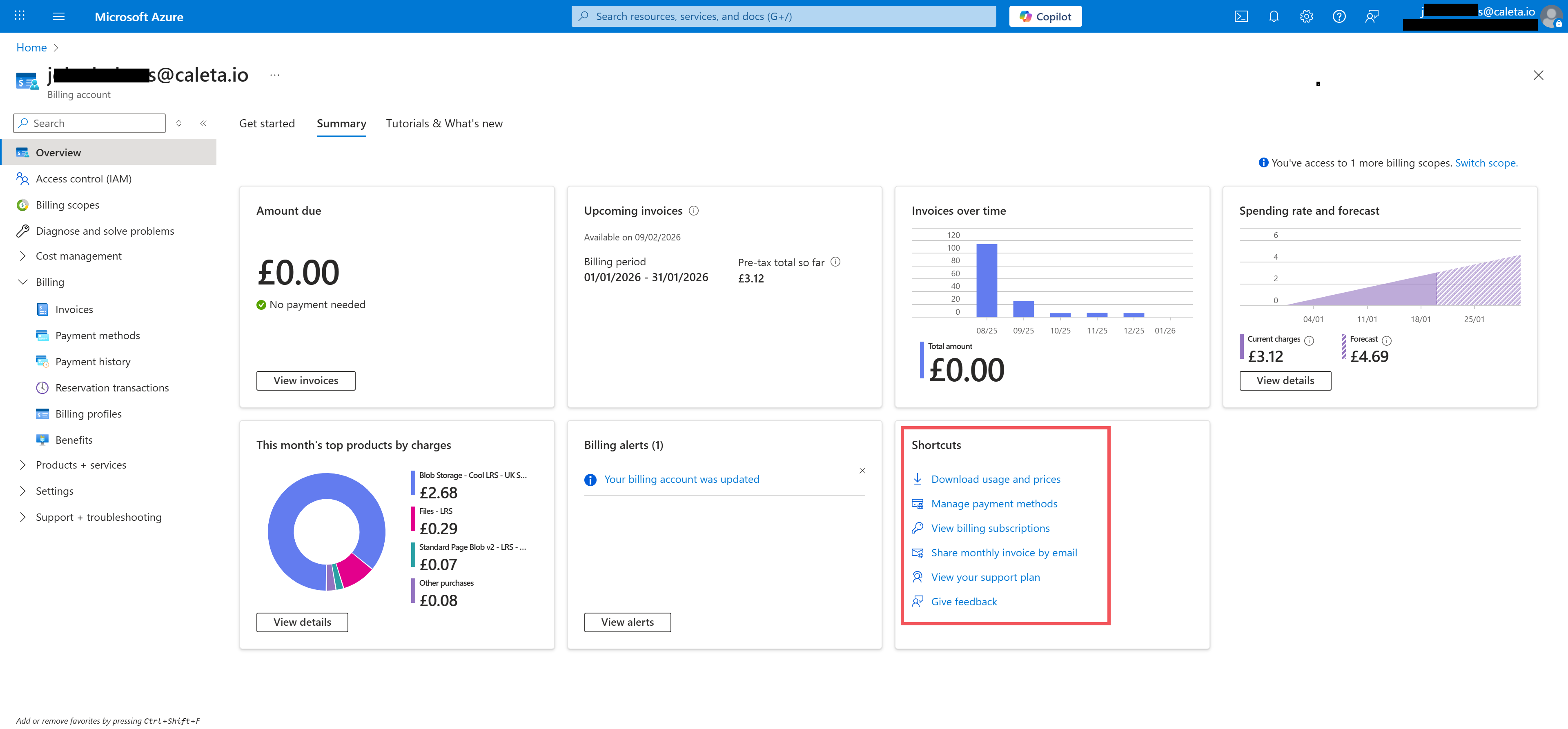
Look for this:
3Download the last 3 months
Click Prepare for each of the last 3 billing periods. Once ready, download each CSV file. Then upload all files to our assessment form.
Still stuck? Try these alternatives
Option A: Export from each Subscription
Works if you don't have billing account access but have subscription-level permissions.
- 1. Go to Subscriptions and select one
- 2. Click Cost analysis in the left menu
- 3. Change view to Cost by resource
- 4. Set date range to Last 3 months
- 5. Click Download → Download to CSV
- 6. Repeat for each subscription
Requires Reader or Cost Management Reader role on each subscription.
Option B: Use Azure Cloud Shell (Technical)
Automated script that exports all your subscriptions at once.
- 1. Open Azure Cloud Shell (select Bash)
- 2. Copy and paste the script below, then press Enter
- 3. When complete, type
download azure-costs.csvto save the file
# Azure Cost Export - All Subscriptions (Last 3 Months)
START=$(date -d "3 months ago" +%Y-%m-01);END=$(date +%Y-%m-%d);OUT="azure-costs.csv"
echo "UsageDate,ResourceId,ResourceType,ResourceLocation,ResourceGroupName,ServiceName,Meter,CostUSD,Cost,Currency,Subscription" > $OUT
for S in $(az account list -o tsv --query "[].id"); do
  N=$(az account show -s $S -o tsv --query name)
  echo "Exporting: $N"
  az rest -m post -u "https://management.azure.com/subscriptions/$S/providers/Microsoft.CostManagement/query?api-version=2023-11-01" \
    -b "{\"type\":\"ActualCost\",\"timeframe\":\"Custom\",\"timePeriod\":{\"from\":\"$START\",\"to\":\"$END\"},\"dataset\":{\"granularity\":\"Monthly\",\"aggregation\":{\"totalCost\":{\"name\":\"Cost\",\"function\":\"Sum\"},\"totalCostUSD\":{\"name\":\"CostUSD\",\"function\":\"Sum\"}},\"grouping\":[{\"type\":\"Dimension\",\"name\":\"ResourceId\"},{\"type\":\"Dimension\",\"name\":\"ResourceType\"},{\"type\":\"Dimension\",\"name\":\"ResourceLocation\"},{\"type\":\"Dimension\",\"name\":\"ResourceGroupName\"},{\"type\":\"Dimension\",\"name\":\"ServiceName\"},{\"type\":\"Dimension\",\"name\":\"Meter\"}]}}" \
    2>/dev/null | python3 -c "import json,sys,csv;d=json.load(sys.stdin);w=csv.writer(sys.stdout);[w.writerow([r[2],r[3],r[4],r[5],r[6],r[7],r[8],r[1],r[0],r[9],'$N']) for r in d.get('properties',{}).get('rows',[])]" >> $OUT
done
echo "Done! Type: download $OUT"
To download: Type download azure-costs.csv in Cloud Shell, or click the Manage files icon (folder) → Download → enter azure-costs.csv
Requires Reader or Cost Management Reader role on each subscription.
Need more help?
Can't get the right permissions? Not sure which method to use? Get in touch and we'll help.